"Order Book" Mode Instructions
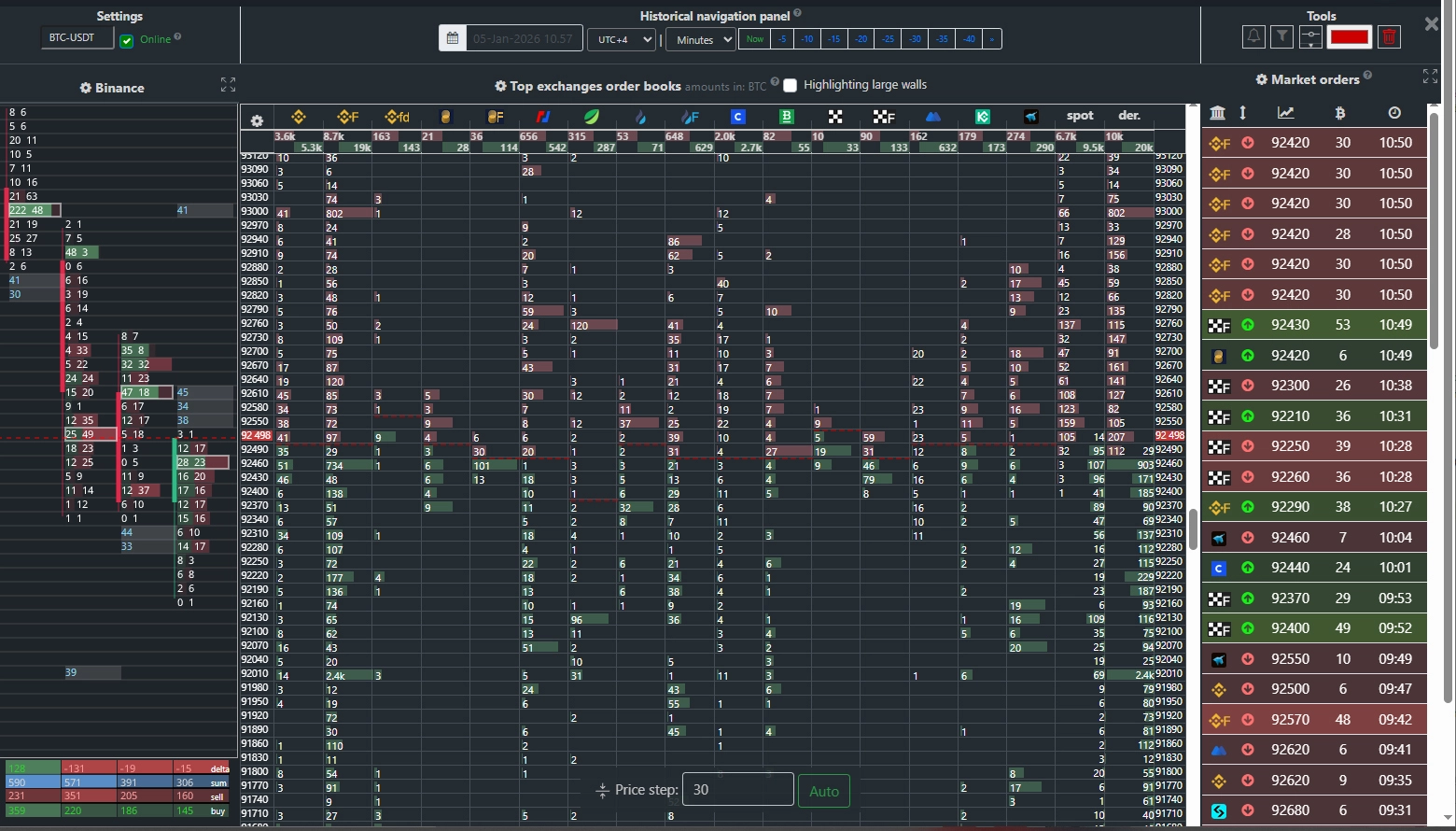
The "Order Book" tab allows you to monitor current limit orders placed in the order books of leading Bitcoin exchanges.
Exchanges are displayed side by side, enabling real-time tracking of large volume movements across all platforms.
Buyers (Bid) – shown with a green background and located in the lower half of the window.
Sellers (Ask) – bars with a red background, located in the upper half of the window.
Aggregate Order Books
This mode also provides data for the aggregate spot order book.
The column labeled "Spot" displays the total sum of limit orders placed across spot exchanges, including:
Binance (USDT, USDC, FDUSD), Coinbase, Bitfinex, Bitstamp, HTX, OKX, Bybit, MEXC, KuCoin, and Bitget.
The "Der." column shows the aggregate order book volume from derivatives exchanges:
Binance Futures, BitMEX, Huobi Futures, OKX Futures, and Bybit Futures.
Price Step
Limit orders are grouped into unified levels based on the defined price step. For example, with a $10 price step, all limit orders spaced every $10 are aggregated into a single level. The step is calculated automatically based on current market conditions, but you can also set it manually. To revert to automatic calculation, click the "Auto" button.Panel Layout
Cluster Chart Panel
Located on the left side of the screen, the cluster chart panel is synchronized with the order book and scrolls simultaneously.
It displays clustered trade volumes and the history of large “wall” order movements on your selected exchange, helping you effectively monitor changes in market activity.
Large Market Orders Panel
On the right is the “Large Market Orders” panel, which aggregates all significant trades executed across all available exchanges.
This data enables you to quickly assess institutional activity and potential trend shifts.
Interface Settings
To hide unnecessary panels or reorder exchanges, go to the "Panel Layout" section.
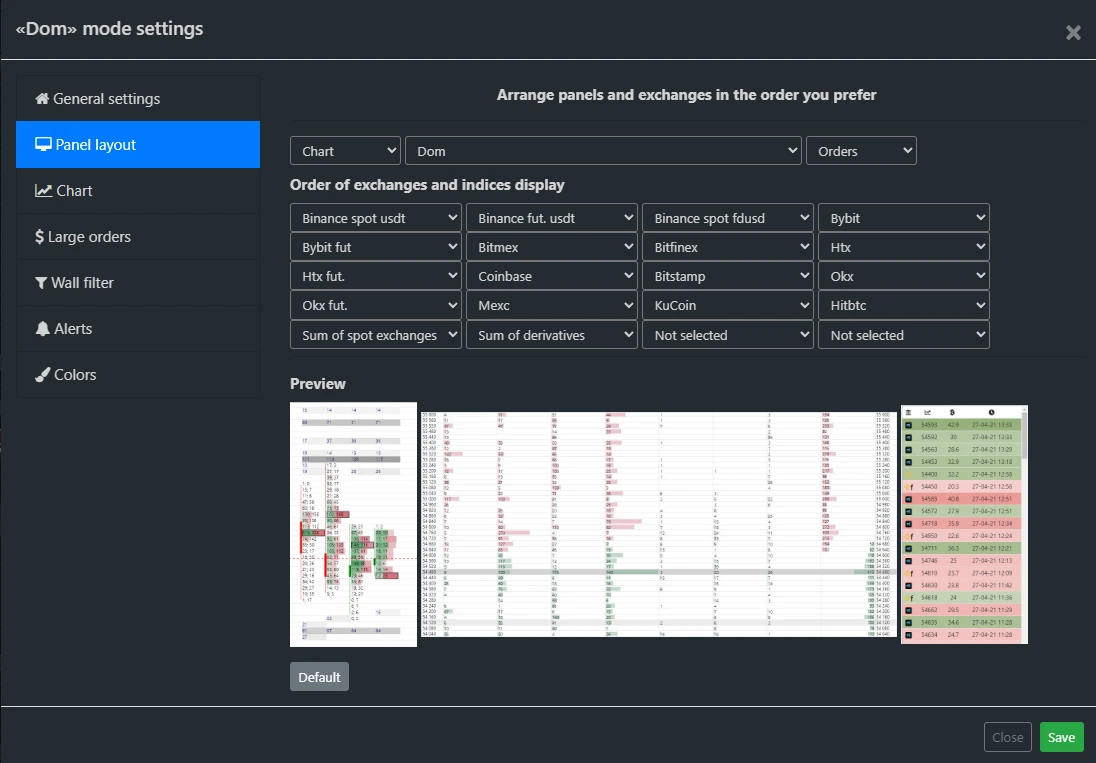
Change Currency Pair
In the "General" settings section, you can select a trading pair and enable the highlighting of significant support/resistance levels (“walls”) within the order books.
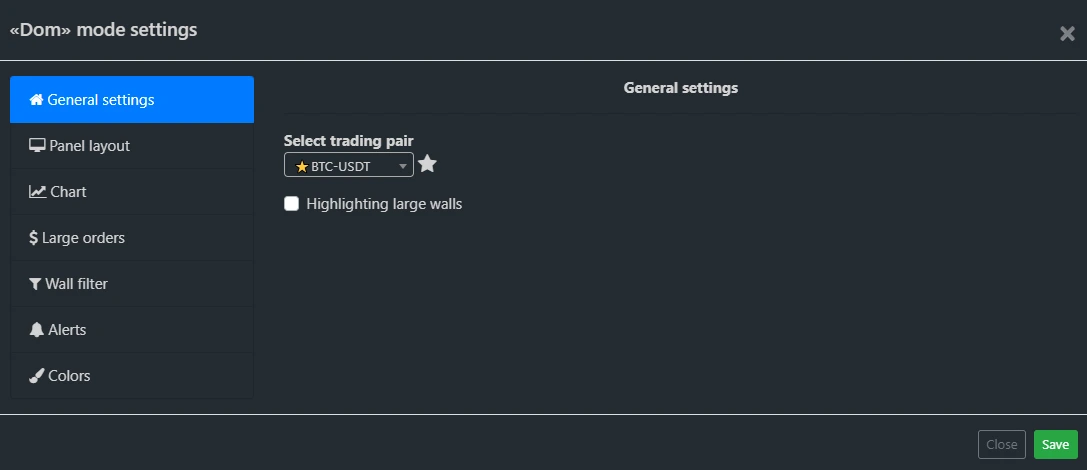
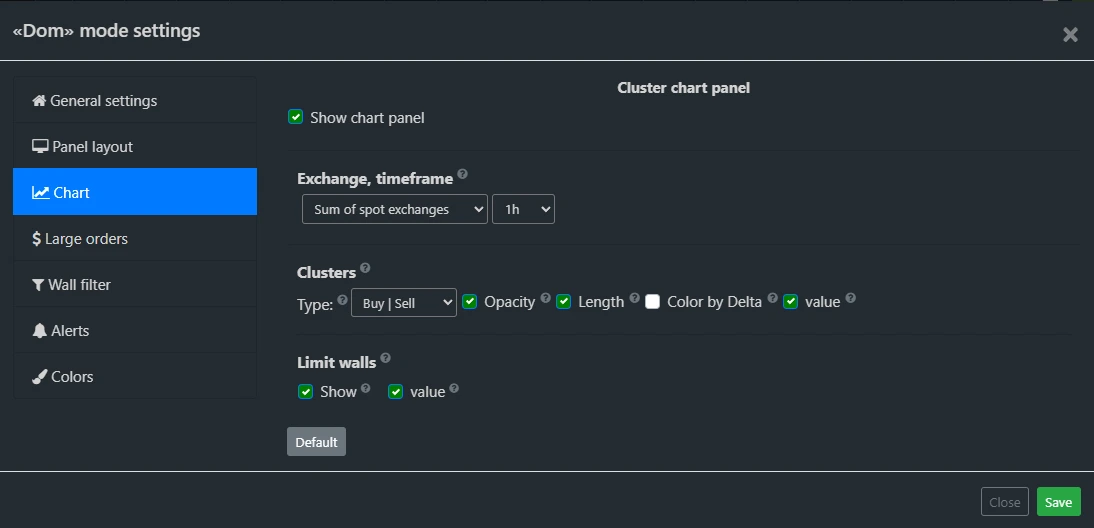
Chart Panel Settings
Here, you can select a specific exchange for chart data or choose the "Aggregate Spot Exchanges" option to view combined trading volume across all available spot exchanges.
Timeframe and visual appearance settings for the cluster chart are also available.
Order Book Filtering
This feature lets you set a minimum size (in cryptocurrency) for limit orders displayed in the order book window.
This helps filter out insignificant orders and focus on the most meaningful liquidity concentrations.
Order Filtering
In this panel, you can customize the list of exchanges and set minimum market order sizes (in millions of USD) for both spot and futures markets to be shown in the “Large Orders” panel.
Order Book History
Two panels are available for navigating trade history. You can select a time format (minutes, hours, days) and then use the corresponding panel to jump to a specific time interval (e.g., -5 minutes, -10 hours, etc.).
To navigate to an exact date and time, use the dedicated time-range selector panel.

Add Level
This tool helps you track specific price levels. Before adding a level, optionally select a color and enter a comment.
Click the “Add” button, then click on the desired price level in the order book window.
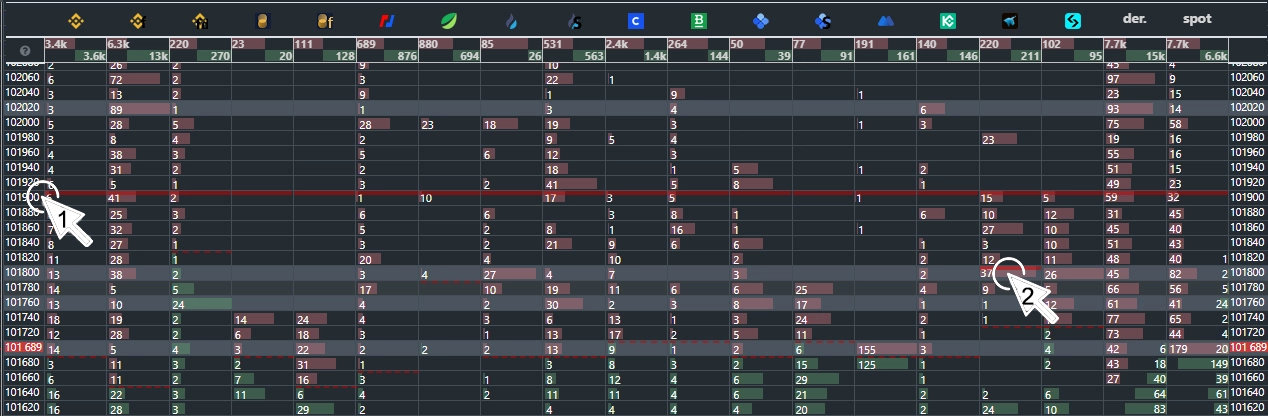
Clicking on the price axis (1 in the image) adds the level to all exchanges; clicking on a specific exchange’s column (2 in the image) adds it only to that exchange.
Hovering over a level displays your saved comment.
Marked levels are visible across the “Order Book”, “Volumes”, and cluster chart tabs.
Ruler Tool
This tool calculates percentage differences between price zones. To measure, click and hold the left mouse button, then drag to the target price level. The measurement result appears at the bottom of the screen.