Volume Analysis.
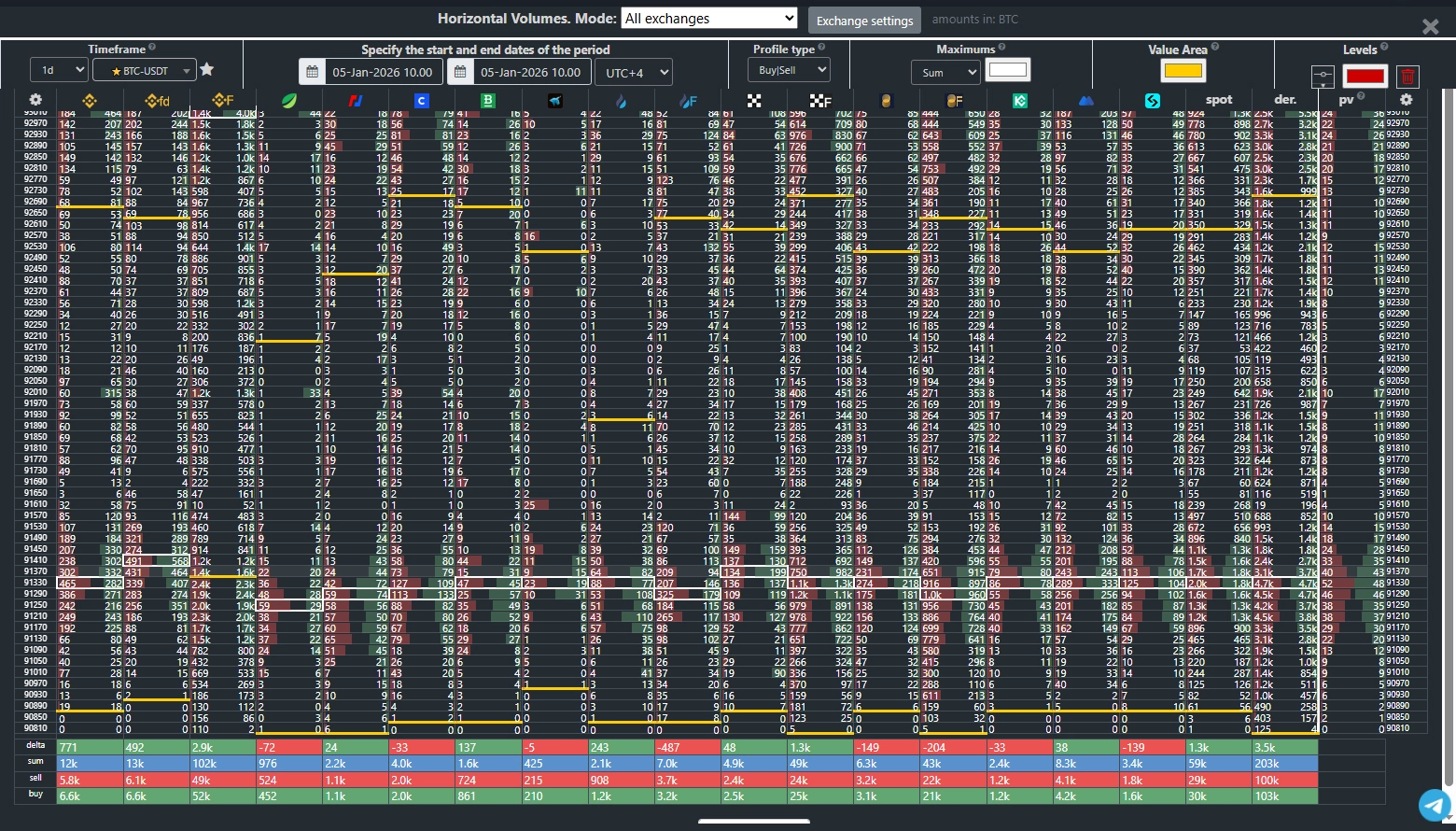
This tab displays volume profiles for each exchange side by side, enabling comparative analysis to identify truly significant price levels and zones.
By default, the tab shows volumes for the past 24 hours. You can specify a custom timeframe or select an exact date and time range.
Sum – buy volume plus sell volume.
Buy | Sell – green bars represent buy volume, red bars represent sell volume.
Delta – buy volume minus sell volume.
Delta: the level with the most significant difference between buys and sells.
Delta +: the level with the strongest dominance of buys over sells.
Delta –: the level with the strongest dominance of sells over buys.
Buy: maximum buy volume.
Sell: maximum sell volume.
Profile Type.
Sum – buy volume plus sell volume.Buy | Sell – green bars represent buy volume, red bars represent sell volume.
Delta – buy volume minus sell volume.
Maxima.
Highlights the profile’s peak values with a frame. The system allows you to select several types of maxima:
Buy+Sell: the price level with the highest traded volume.Delta: the level with the most significant difference between buys and sells.
Delta +: the level with the strongest dominance of buys over sells.
Delta –: the level with the strongest dominance of sells over buys.
Buy: maximum buy volume.
Sell: maximum sell volume.
Value Area.
Indicates the price range within which 70% of all trades occurred. Highlighted with a line of the selected color.
Add a Level.
Used to track specific price levels. Before adding, optionally choose a color and enter a comment.
Click the “Add” button, then click on the desired price level within the volume window.
Clicking directly on the price axis adds the level to all exchanges,
whereas clicking on a specific exchange’s bar adds it to that exchange only.
Hovering over a level displays your saved comment.
Added levels are tracked across the “Order Book,” “Volume,” and cluster chart tabs.